Home screen
☰ Sidebar
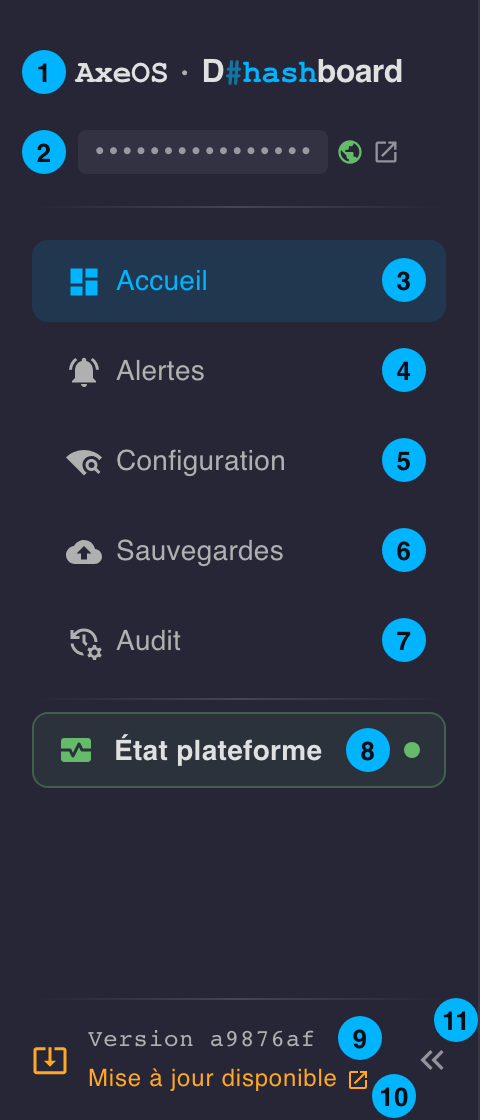
- AxeOS · D#hashboard — reloads the app and goes back home, as when first arriving on the dashboard.
- Hashboard board — once the push to hashboard is set up: the board ID (click to open it), whether it’s public or private, and a link to your hashboard account. Go to Remote →
- Home — overview of all your miners.
- Alerts — alert history (temperature, fan, offline…). Go to Alerts →
- Settings — miners, electricity, notifications, remote, system. Go to Configuration →
- Backups — monthly archives of the miners’ history, to download. Go to Backups →
- Audit — history of restarts, pool switches, configuration changes, exports and network scans. Go to Audit →
- Platform status — green when everything runs, orange when a service missed a run, red when a service doesn’t answer; click for the details (see below).
- Version — the currently deployed build’s SHA.
- Update available — only shows up if a newer dashboard version is available on GitHub; click to open the release.
- Fold — narrows the sidebar to a column of icons, each page’s name in a tooltip; the browser keeps the choice.
On a phone, the sidebar opens from the top bar’s ☰ button.
Platform status
A click on the Platform status card opens the state of every service of the installation, asked again on every opening:
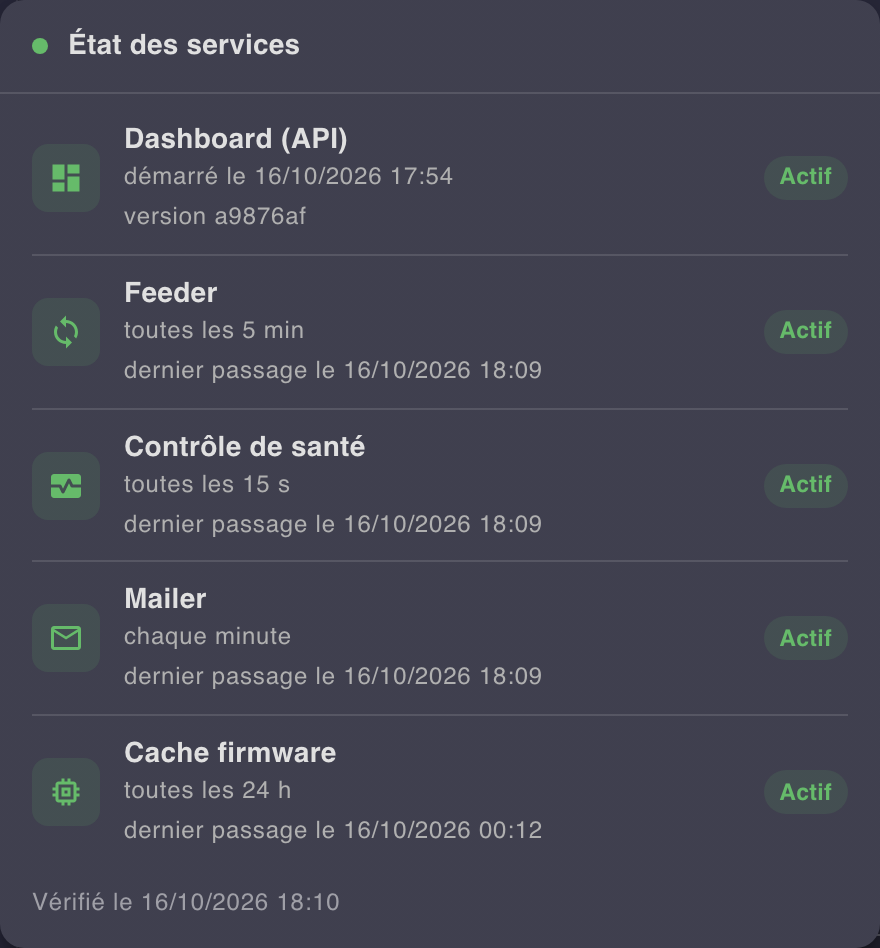
- Dashboard (API) — when it started, and its version.
- Feeder — its interval and its last poll of the miners.
- Health check — its interval and its last check.
- Mailer — its last run (it looks every minute for a mail to send).
- Firmware cache — its last check for a new version.
Each one is Running, Late (nothing within twice its interval), Unreachable (doesn’t answer) or No run yet.
🔔 Top bar
Always on screen, even while scrolling the page.

- Page — the current page’s icon, title and description.
- Documentation — opens this documentation.
- Auto-refresh — turns the automatic data refresh on (blue) or off (grey) in one click; the browser keeps the choice.
- Notifications — ongoing alerts and recent events (alert resolved, update available…); the red badge counts the unread ones.
- Language — switches between French and English.
On a phone, the bar keeps what matters most:
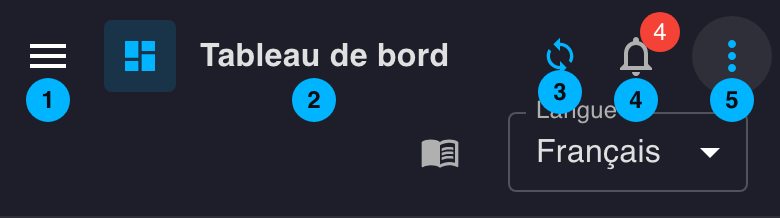
- Menu — opens the sidebar.
- Page — the current page’s icon and title.
- Auto-refresh
- Notifications
- More — unfolds the documentation and language below the bar; folds back on every page change.
📊 The fleet
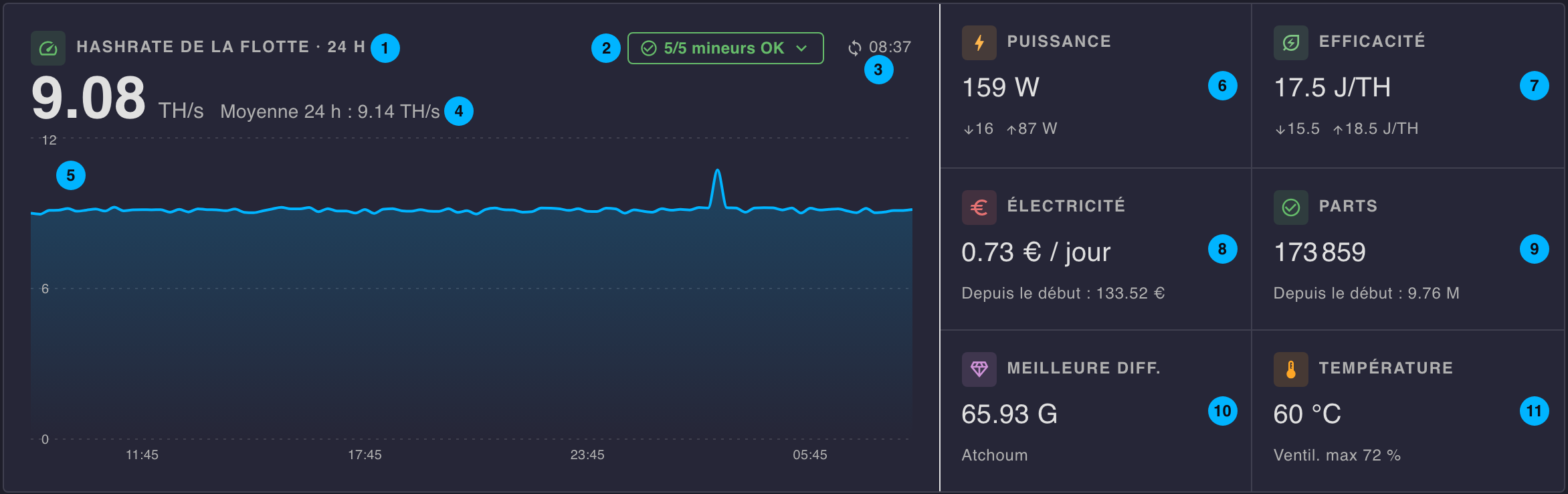
- Fleet hashrate · 24 h — what all the miners produce together.
-
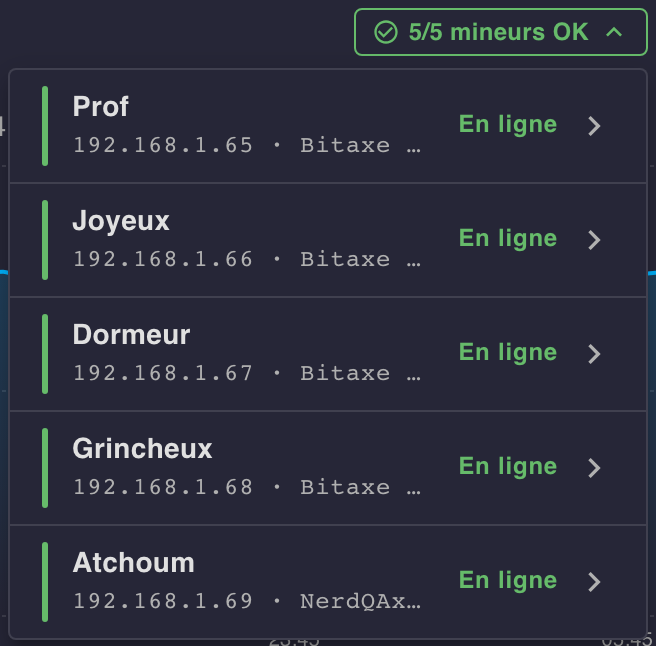
Health — how many miners have no problem, out of the total. Takes the color of the most urgent problem, if any. A click unfolds every miner, the ones with a problem first, each with its status; clicking one opens its details.
- Last poll — time of the most recent reading. Turns red when even that one is older than twice the configured polling interval: the feeder has stopped.
- Current hashrate — the sum of the reachable miners’ hashrate, and next to it the average over the last 24 h.
- 24 h chart — the fleet’s combined hashrate, in 15-minute steps. A stretch with no reading at all (feeder stopped) shows in grey.
- Power — the reachable miners’ total draw; below, the lowest ↓ and highest ↑ of a single miner.
- Efficiency — the fleet’s efficiency (J/TH); below, the best ↓ and worst ↑ miner.
- Electricity — estimated cost over a day at the current draw and the configured rate, for the whole setup: the miners plus the other devices declared (fan, router…). Below, the total actually spent since each miner started being tracked — a later rate change never alters that past total.
- Shares — total accepted shares since the miners last started; below, the cumulative total since they were first set up.
- Best diff — the best difficulty reached, and the miner holding it.
- Temperature — the lowest ↓ and highest ↑ chip temperature; below, the fastest fan speed.
🚦 Miner status & pools

- Miner status — the miners broken down by status, most urgent first:
- Offline — the miner no longer answers.
- Config error — the configured
mac:doesn’t match what the miner reports (wrong device at that IP, or a typo). - Delayed — the miner answers, but no reading has come in for more than twice the polling interval.
- Alert — chip temperature at 62 °C or more, or fan at 75 % or more.
- Online — all good.
- Pools — the share of the fleet’s hashrate going to each pool.
Each chip filters the miner list below; a second click removes the filter.
🔍 Search, filters & sort

- Search — free text (name, IP, model, pool, stratum user, firmware version) or comparisons:
temp>60,fan<=50,power>15,hashrate<0.3,uptime>3600(seconds).offlinekeyword (negate with!offline/-offline). Several space-separated terms must all match; negate any term with-/!. - Tips — a reminder of that syntax.
- Sort — hottest (default), hashrate, fastest fan, most shares, oldest (total uptime) or pool (A-Z), remembered between visits. Whatever the sort, miners with a problem stay on top, most urgent first.
- Model — filter by miner type, with the number of miners for each.
- Firmware — filter by firmware version, with the number of miners for each.
- View — list or tiles, remembered between visits. On a phone, miners always show as tiles.
- Counter — how many miners are shown, out of the total.
📋 The miner list
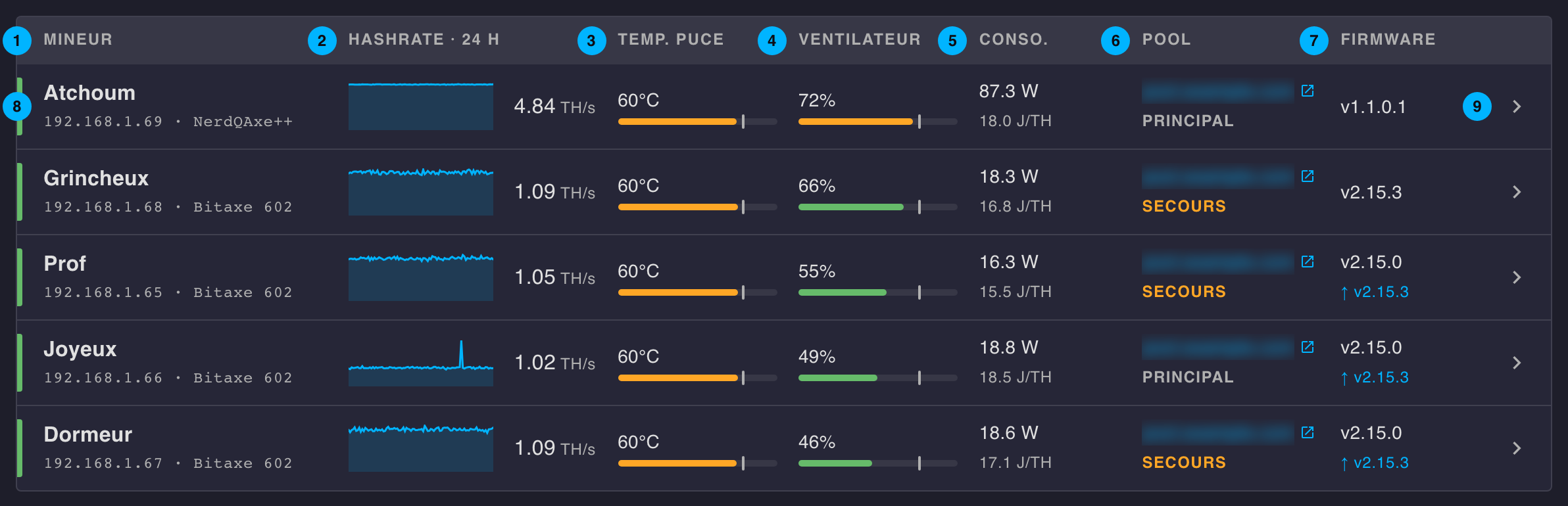
- Miner — alias or hostname, then its IP and model.
- Hashrate · 24 h — the last 24 h of hashrate and its current value. Stretches where the miner was unreachable show in red on the baseline.
- Chip temp — chip temperature, on a green gauge that turns orange close to the 62 °C threshold (marked by a tick), then red once it’s reached.
- Fan — fan speed, on the same gauge, with a 75 % threshold.
- Power — draw (W) and efficiency (J/TH).
- Pool — the active pool, linking to its dashboard when a link is known for it (see Configuration), and whether it’s the Primary or Fallback one.
- Firmware — installed version; below, in blue, the newer version available if there is one.
- Status — the stripe on the left takes the color of the miner’s status.
- Details — a click anywhere on the row opens the miner’s details.
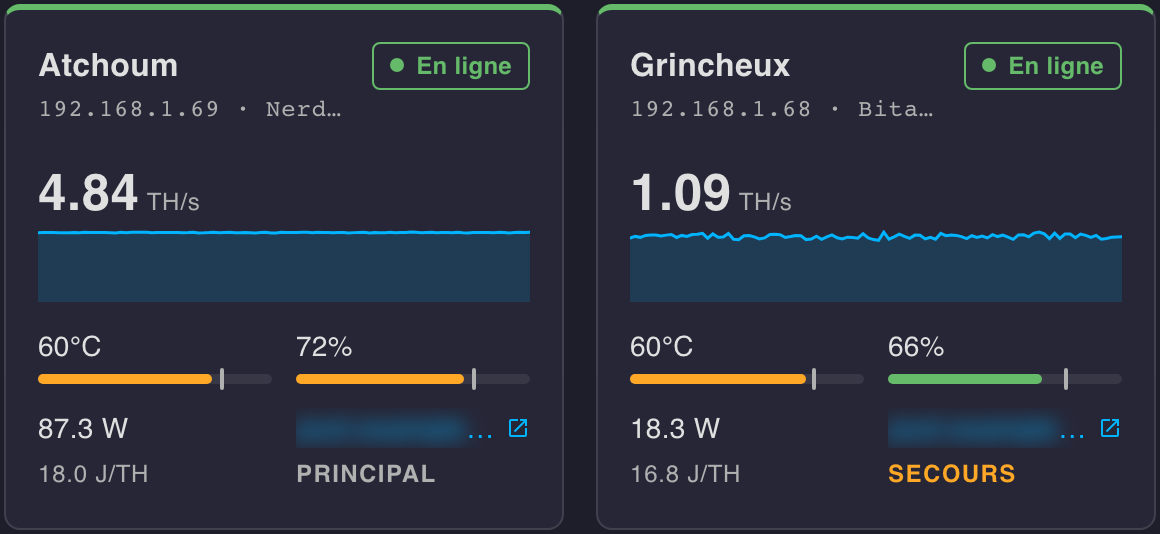
As tiles, each miner shows the same information, with its status spelled out:
🔎 A miner’s details
A panel that slides in from the right (full screen on a phone); it closes with the cross, by clicking next to it, or with a swipe to the right on a phone.
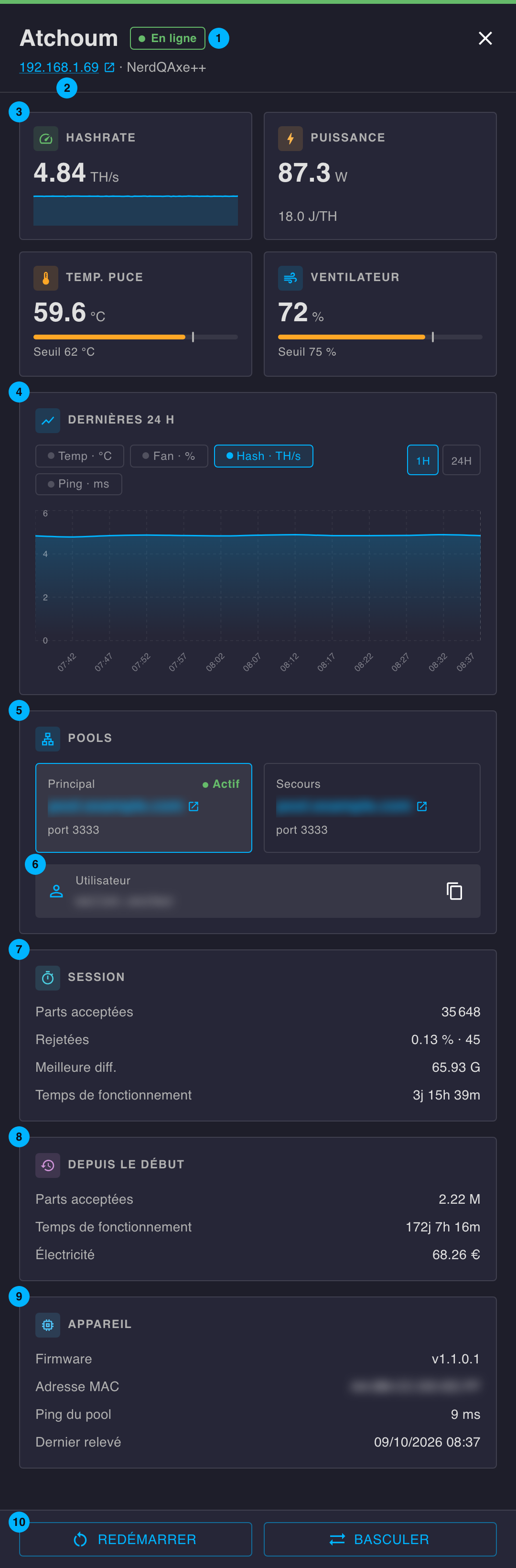
- Name and status — the stripe at the top takes the status color.
- IP — a direct link to the miner’s own interface, followed by its model.
- Readings — the last 24 h of hashrate, power and efficiency, chip temperature and fan with their threshold.
- Last 24 hours — a chart of the temperature, fan, hashrate or ping, over the last hour (1H) or the last 24 hours (24H).
- Pools — the primary and fallback pools, the active one marked Active; each links to its dashboard when a link is known for it.
- User — the selected pool’s stratum user, copied in one click. Clicking the other pool shows its own.
- Session — accepted and rejected shares, best difficulty and uptime since the last restart.
- Since tracking began — accepted shares, uptime and electricity spent since the miner was first set up.
- Device — firmware version, MAC address, pool ping and time of the last poll.
- Actions — Restart the miner or Switch to the other pool (the miner restarts to apply it), always after a confirmation.
When the miner has a problem, a banner right under the header details it: unreachable, no reading since a given time, configuration error, temperature or fan at its threshold. A newer firmware version shows in a blue banner, with a link to its release.